
After you turn on the Bcc box, it appears every time you create a message until it's turned off.
-
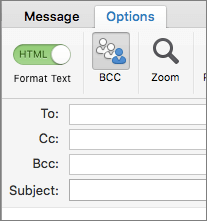
Create a new email message, then click Options > Bcc.
-
In the Bcc box, add recipients, compose the message, and choose Send when done.
Turn off Bcc
You can turn off the Bcc box for future messages at any time.
-
Create a new email message, then choose Options >Bcc.
Note: The background color distinguishes between the Bcc button being turned on or turned off. A dark background means the button is turned on, and a light background means it's turned off.
View Bcc recipients
If you're the recipient of a message, you can't see whether the sender added Bcc recipients. Only the sender of a message can see the names of Bcc recipients by opening a message in the Sent Items folder where all sent messages are stored by default.
-
In the Sent Items folder, open the message that you sent.
-
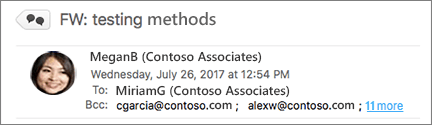
In the Reading Pane, view the header section of the message.
Tips:
-
If there are more recipients, you'll see the number of recipients and more. In the screenshot, for example, 11 more signals there are 11 more recipients listed in the Bcc box.
-
Click more to expand (open) your the message header section.
-
Comments
0 comments
Please sign in to leave a comment.