
-
Compose your email message and include one or more recipient names on the To: line.
-
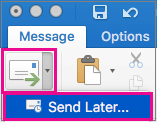
Onthe Send button, select the dropdown arrow > Send Later.
-
Enter a time and date.
-
Select Send. The message will be saved in the Drafts folder until the specified date and time. It will be sent even if Outlook is not open on your computer.
Cancel a message scheduled to be sent later
-
In the Drafts folder, open the email message.
-
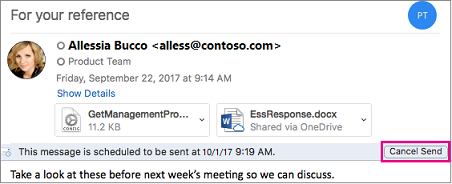
Select Cancel Send.
-
Select Yes to confirm. The message remains open so you can send it right away or delay it until another time.
Comments
0 comments
Please sign in to leave a comment.