
The signature attached to your emails can be customized to reflect your personal tastes, your company logo, or a particular mood. Signatures can contain text, links, and pictures; for example, you can create a signature for a business email that includes your name, job title, phone number, and company logo. Here's an example:
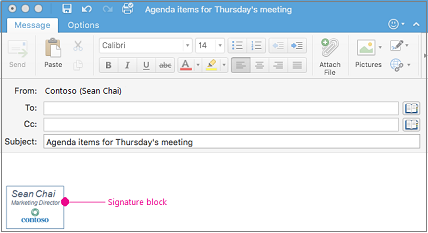
You can add signatures manually to individual email messages, or you can have a signature automatically added to every message that you send.
Create an email signature
-
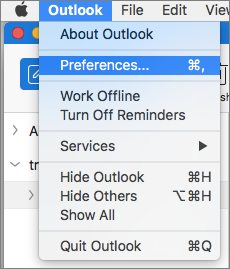
On the Outlook menu, select Preferences.
-
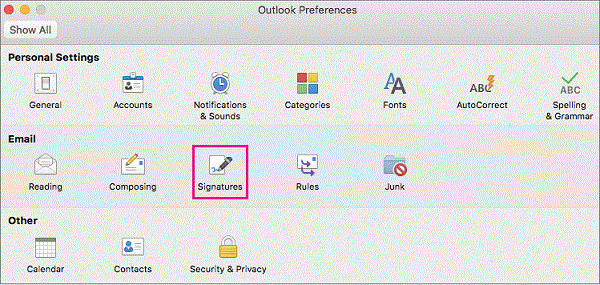
Under Email, select Signatures.
-
Double-click Untitled, and then type a name for the signature you created.
or
-
Select
 to add a new signature.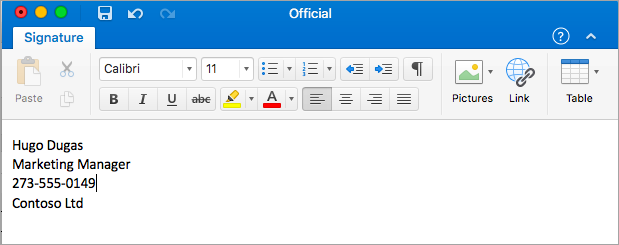
-
In the Signature editor, type the text that you want to include in your signature. You can:
-
Apply formatting such as font, font style, font size, font color, or highlighting. Select the text before applying any formatting.
-
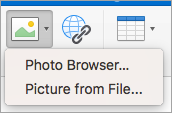
Add photo, logo or picture to your signature by inserting Pictures from Photo Browser or Picture from file
-
Add a hyperlink to your portfolio or company website. Choose Link
 , type the Text to Displayand Address and select OK.
 -
Insert a table.
-
-
After you are done creating your signature, close the editor window.
-
Close the Signatures window.
Add a signature to an email or calendar invite
-
Click in the body of your message.
-
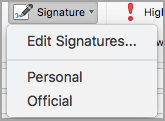
On the Message tab, select Signature, and then choose a signature from the list.
Add a signature automatically to all messages
You can set a default signature for each of your mail accounts.
-
On the Outlook menu, select Preferences.
-
Under E-mail, select Signatures.
-
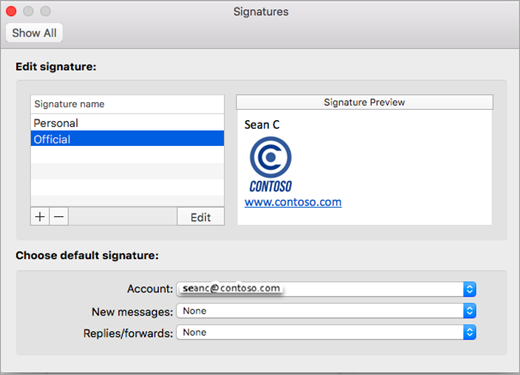
Under Choose default signature, select the account for which you'll set a default signature.
If you have multiple accounts, you must set the default signature separately for each account.
-
If you want to add a signature to all new messages, set the New messages option accordingly.
-
If you want to add a signature to all messages you reply to or forward, set the Replies/forwards option accordingly.
-
Close the Signatures window.
Comments
0 comments
Please sign in to leave a comment.