
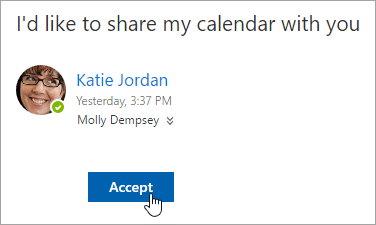
If you receive an invitation to share someone else’s calendar, select Accept in the message or the link in the invitation to add their calendar to your calendar view.
You also can go your calendar in Outlook on the web to add other people's calendars to your view. However, calendars opened this way won't appear in all of your Outlook clients. To ensure that other people's calendars appear in all of your Outlook clients, ask them to share their calendars with you.
-
At the top of the page, select the app launcher
 , and select Calendar.
 -
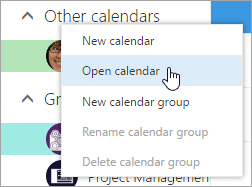
In the navigation pane, right-click Other calendars and select Open calendar.
-
To add a calendar, choose one of the following:
-
To add a calendar that belongs to someone in your organization, in the From directory box, enter his or her name and select Open. If that person has not shared his or her calendar directly with you, opening the calendar will display with the permissions he or she granted to the My organization user.
-
To add a calendar from outside your organization, in the Internet calendar box enter the URL, and select Open. The URL probably ends with the .ics file extension.
NOTES: If you try to add a calendar from the Internet and are sure the URL is correct, but you're not seeing any information, try removing the calendar and adding it again, changing the protocol from http to https.
-
After you add another calendar, you can rename it, change its color, or remove it from your view.
For information about editing someone else's calendar, see Manage someone else's calendar in Outlook Web App.
For more information about opening calendars from outside your organization or from ICS URLs, see Open an Internet calendar in Outlook Web App.
Comments
0 comments
Please sign in to leave a comment.