
At the top of the page, select the app launcher  , and select Calendar.
-
At the top of the screen, select Share, and choose the calendar you want to share.
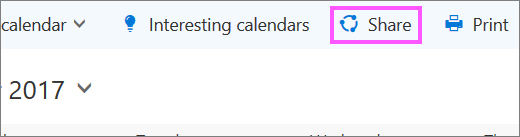
By default, your primary calendar is called "Calendar". If you created other calendars, you can select one of them to share instead. You cannot share calendars owned by other people.
-
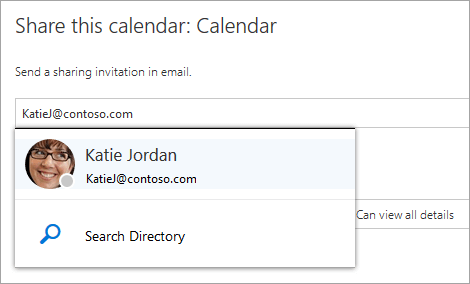
Enter the name or email address of the person with whom you want to share your calendar in the Send a sharing invitation in email box.
-
Choose how much information you want this person to see:
-
Can view when I'm busy lets the person see when you are busy but does not include details such as the event location.
-
Can view titles and locations lets the person see when you are busy as well as the title and location of events.
-
Can view all details lets the person see all the details of your events.
-
Can edit lets the person see all details of your events and edit your calendar (only available when sharing with people in your organization).
-
Delegate lets the person view and edit your calendar, as well as send and respond to meeting requests on your behalf (only available when sharing with people in your organization). For more information about editor and delegate access, see Calendar delegation in Outlook on the web for business.
-
-
Select Share. If you decide not to share your calendar right now, select Remove
 .
.
NOTES:
-
When sharing a calendar other than your primary calendar—such as a project calendar that you created—you cannot select Delegate.
-
Calendar items marked private are protected. Most people with whom you share your calendar see only the time of items marked private, not the title, location, or other details. The only exception to this is that you can give a delegate permission to view private events.
-
You might also see an entry for My organization in the list of people with whom you’ve shared the calendar. This is the default level of detail that others in your organization, or federated organizations, can see when viewing your calendar in Scheduling Assistant.
Comments
0 comments
Please sign in to leave a comment.